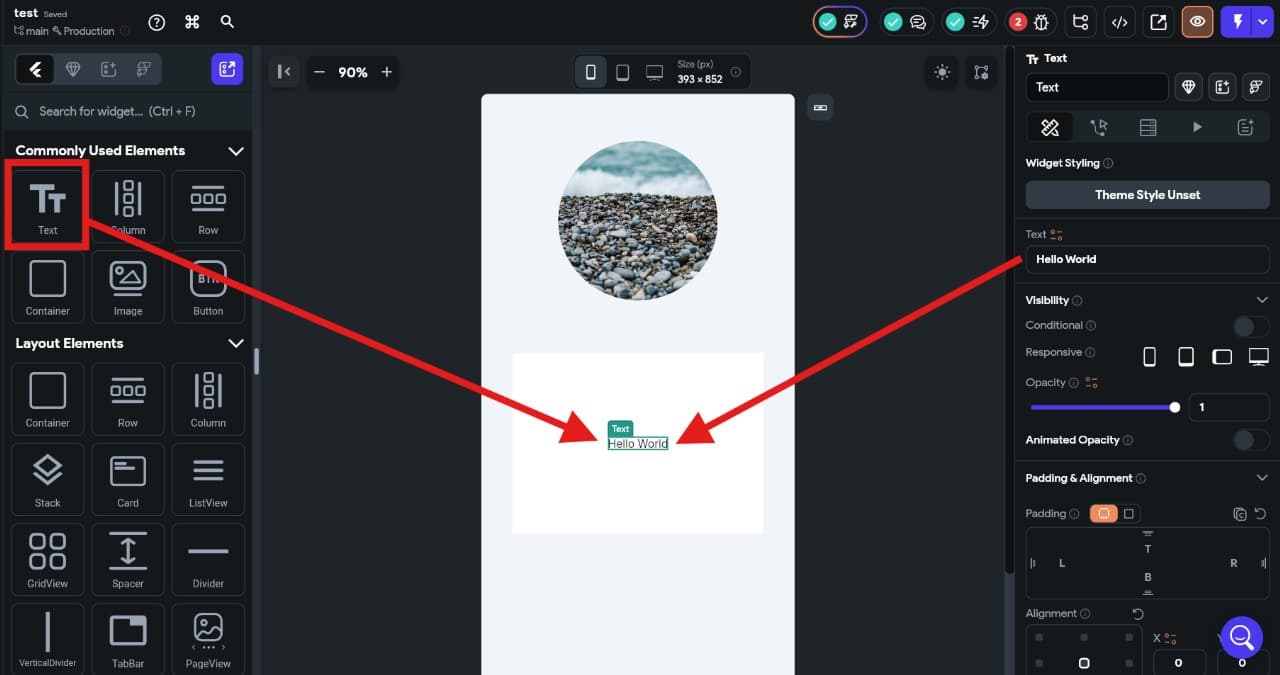
🛠️ Day 1 — Practical: Create a Profile Page
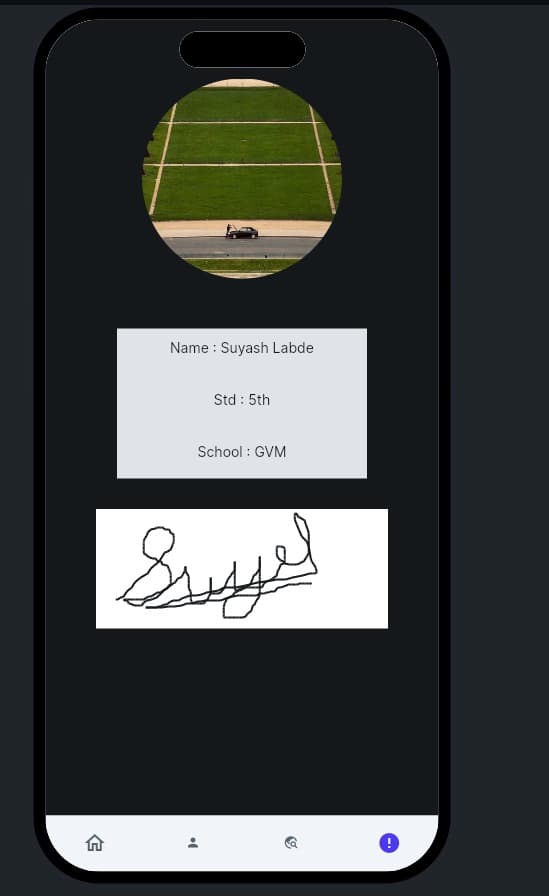
What we'll build: a simple Profile Page with a profile image, your name, a short description, and nice colors & fonts.
Perfect for beginners and fun for Grade 5 students! 🎉
🔎 Quick Preview
👉 Your page will look like a digital visiting card:
- Profile photo
- Name in bold
- Small description under it
- Neatly centered on screen with colors
🧩 What is a Widget?
In FlutterFlow (and Flutter), everything you see on screen is a Widget.
- Text = a widget
- Image = a widget
- Button = a widget
- Even layouts like Row/Column are also widgets!
Think of widgets like LEGO blocks 🧱 — you combine them to build your app.
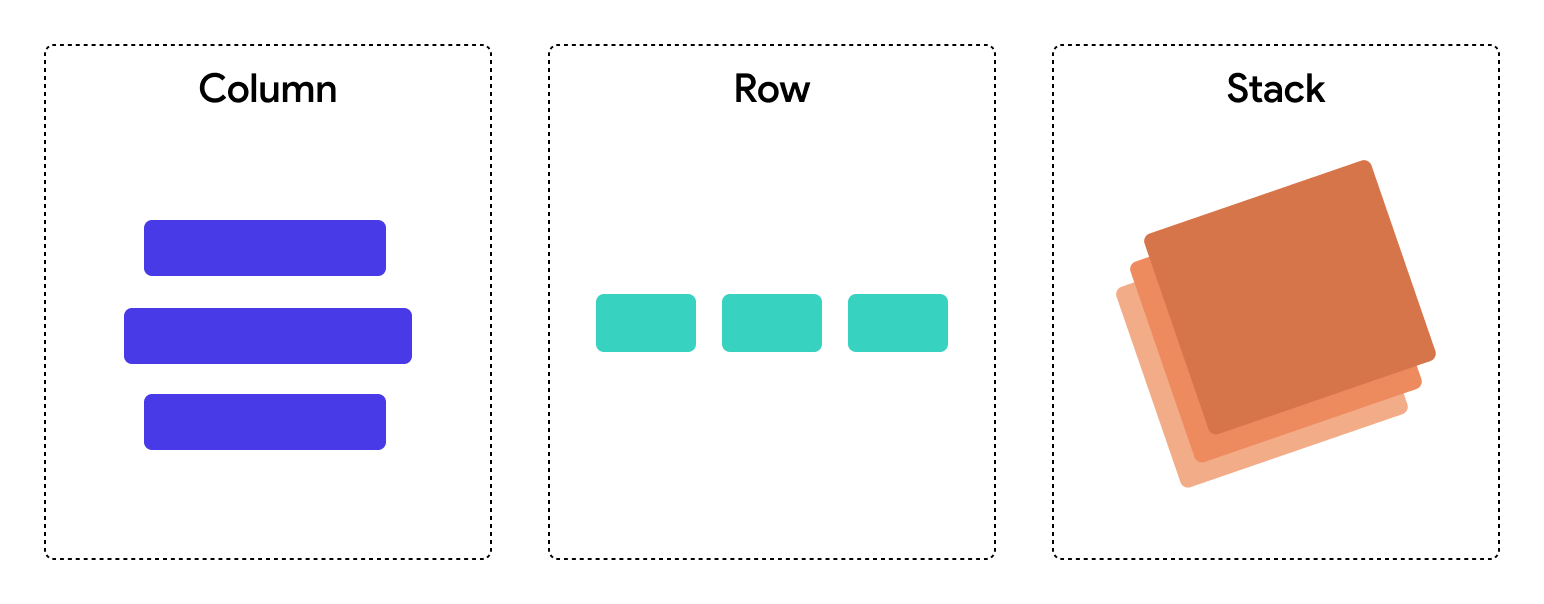
🏗️ Layout Widgets
Sometimes you need to arrange widgets side by side or top to bottom. That’s where layout widgets help:
-
Column → Places items vertically (top to bottom)
-
Row → Places items horizontally (left to right)
-
Stack → Places items on top of each other (like layers in Photoshop)
👉 In our Profile Page, we’ll use a Column to arrange Image → Name → Description vertically.
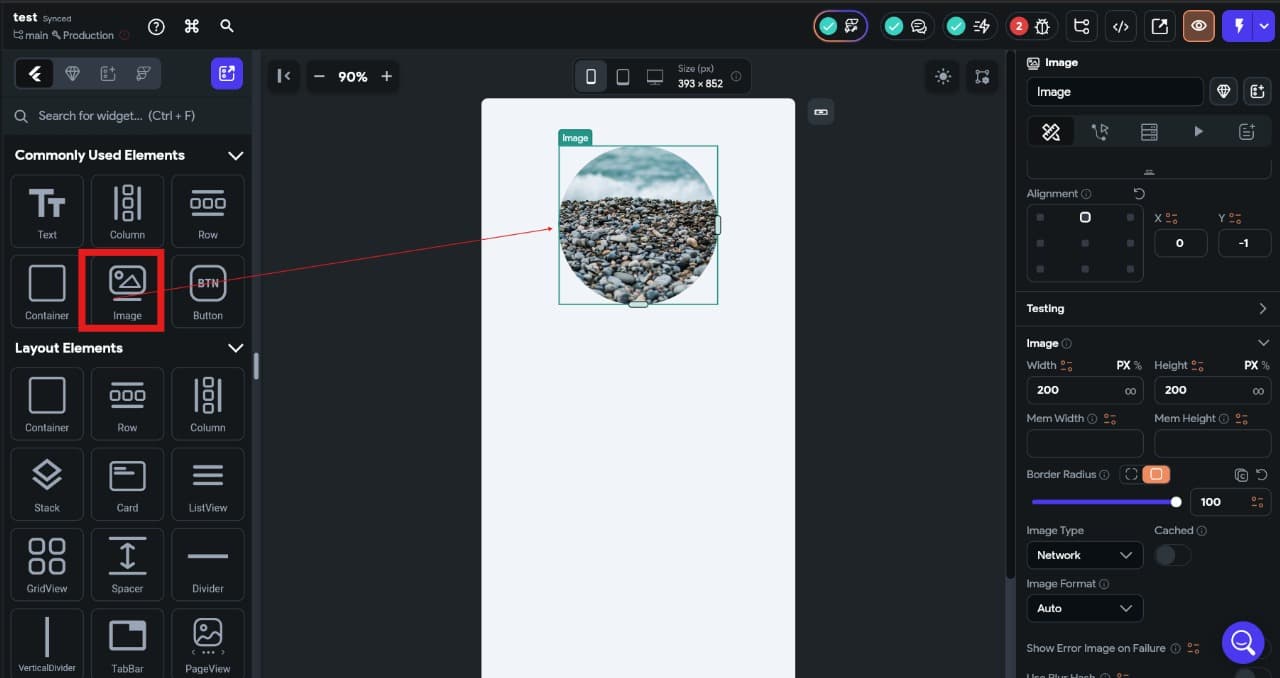
Add Image Widget
- Drag an Image widget onto the page.
- Upload a profile photo (or pick a placeholder).
- Resize it to a circle shape (set border radius = 100).
Add Container
- Drag a Container widget below the Image.
- Set background color (light gray or blue).
- Add padding to make it look neat.
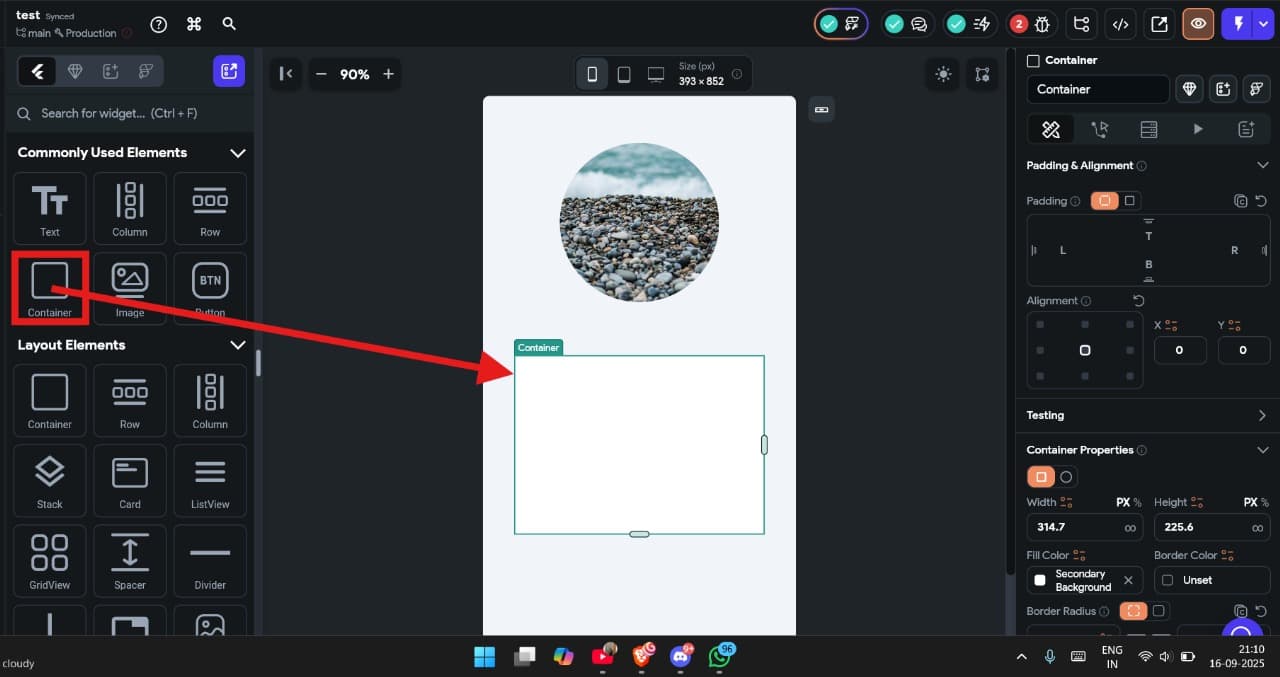
Add Text inside Container
- Drag a Text widget into the Container.
- Write your Name in bold.
- Add another Text widget below for a short description (like “I love coding 🎉”).
- Style it → change font, size, and color.