🎛️ FlutterFlow GUI Guide
FlutterFlow is like a control room for building apps without code.
Think of it like LEGO + Paint + Remote Control all in one place.
Let’s explore the main parts of the editor 👇
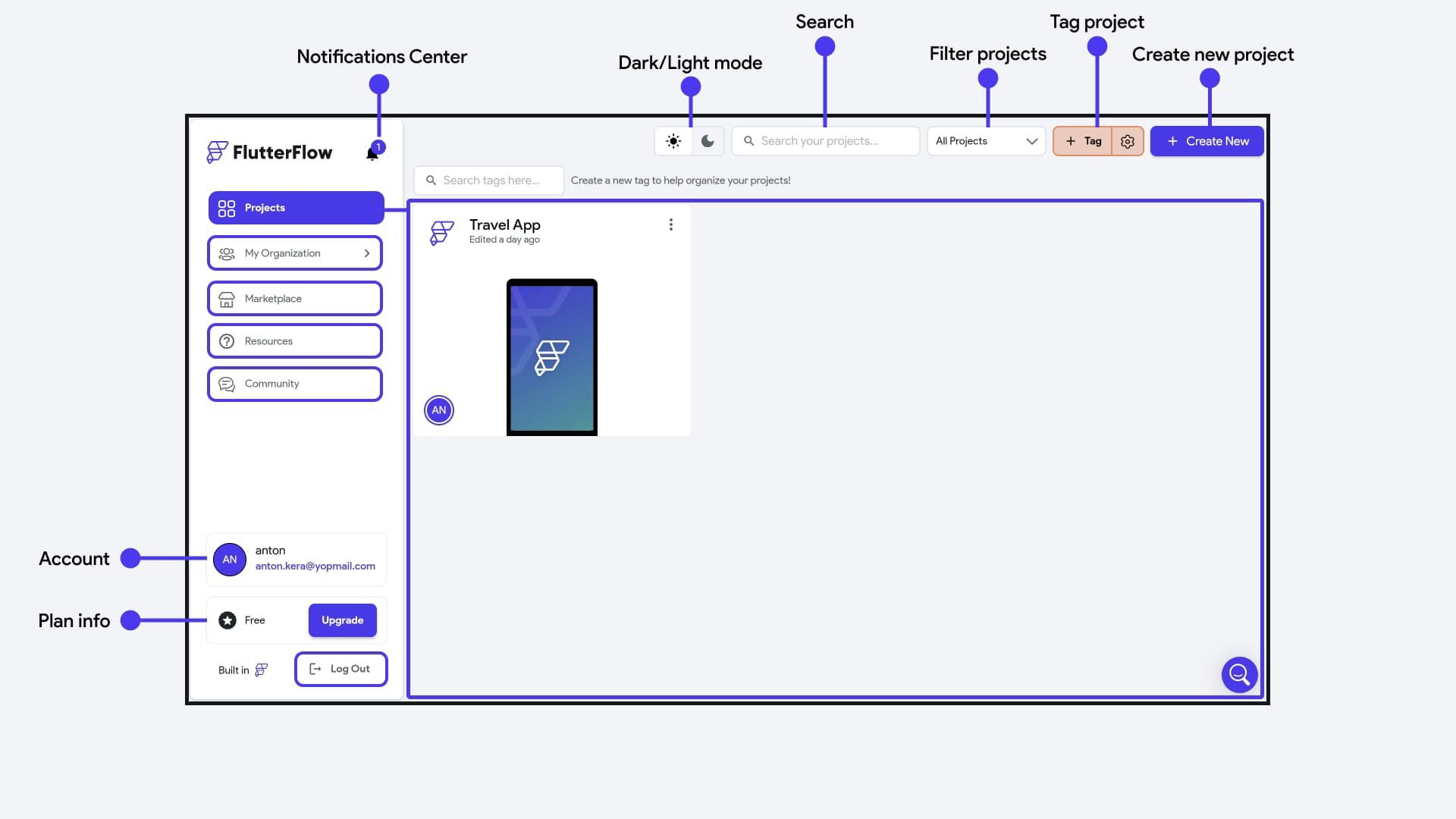
🏠 Dashboard
The home screen of FlutterFlow.
Here you can:
- 📂 Manage all your projects.
- 👤 Access account info.
- 📚 Explore FlutterFlow resources (docs, community).
🛠️ App Builder
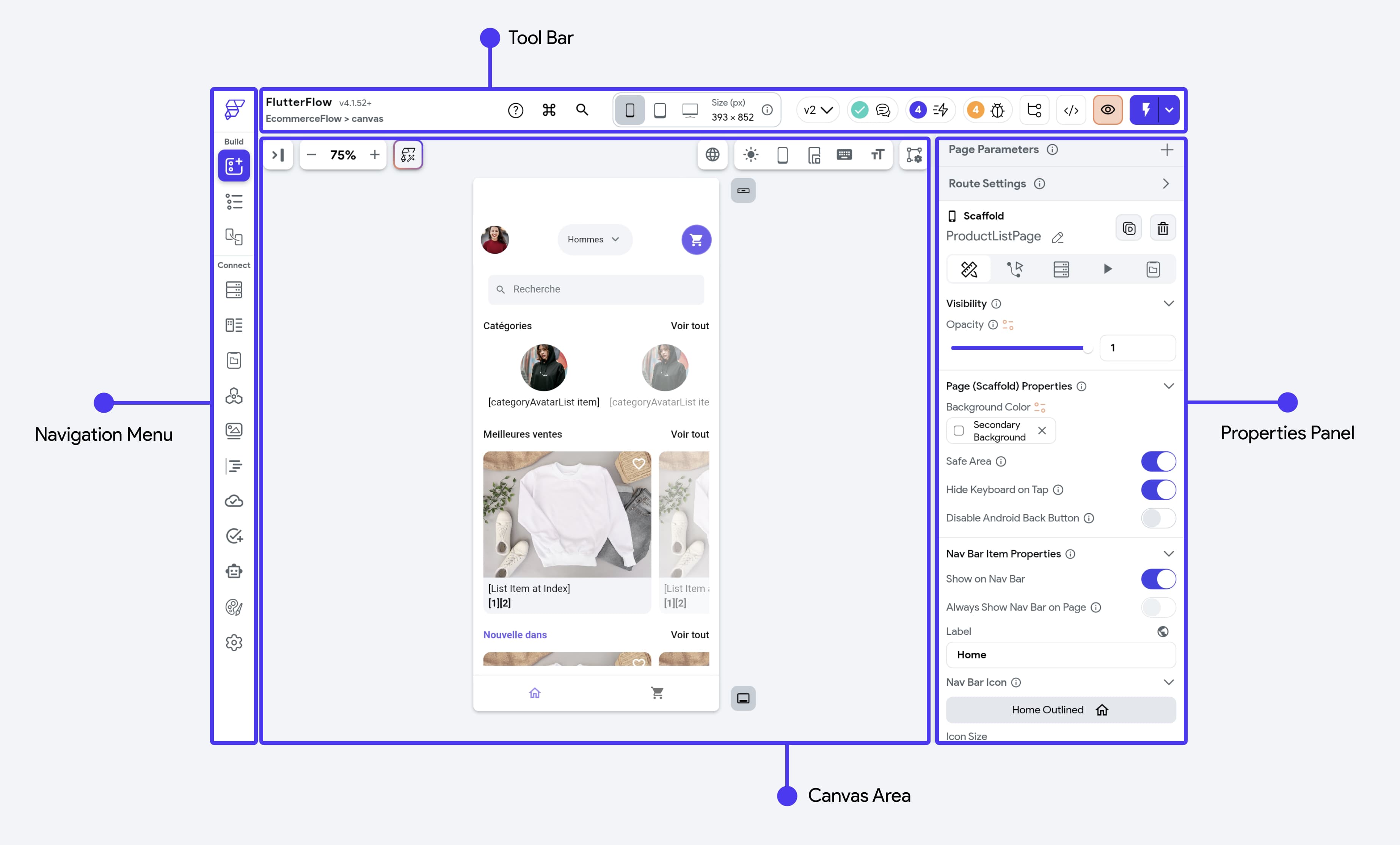
This is your main workspace — where you’ll design and connect your app.
It’s made up of several important tools:
- Widget Palette 🧩 → Access all widgets for your app.
- Page Selector 📄 → Manage pages and components, create folders.
- Widget Tree 🌳 → See all widgets on a selected page, like an outline view.
- Storyboard 🎞️ → Visualize app screens and navigation flow.
- Firestore 🔥 → Create collections and adjust Firestore database settings.
- Data Types 🗂️ → Define custom data types for your app.
- App Values ⚙️ → Manage app state variables and constants.
- API Calls 🔗 → Connect your app to external APIs.
- Media Assets 🖼️ → Upload and manage images, icons, and files.
- Custom Functions 🛠️ → Add your own logic, widgets, or actions.
- Cloud Functions ☁️ → Write and deploy Firebase cloud functions.
- Tests 🧪 → Add automated tests for your app.
- Agents 🤖 → Configure AI Agents for chat and smart interactions.
- Theme Settings 🎨 → Customize colors, fonts, and visual appearance.
- Settings & Integrations 🔌 → Manage app-related settings and integrations.
💡 Tip: Beginners will mostly use Widgets, Canvas, Storyboard, and Theme.
Advanced tools (like APIs, Functions, Agents) are for later.
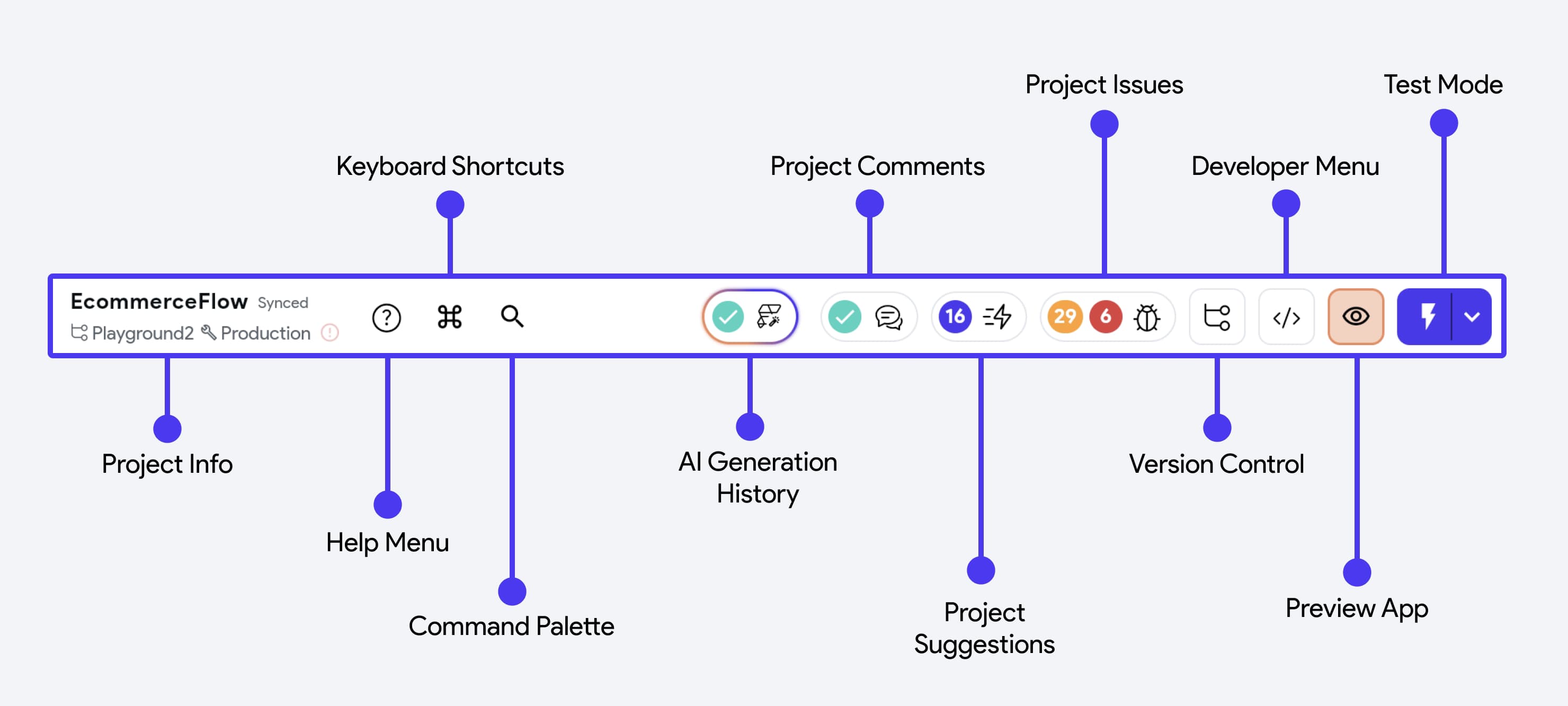
🎹 Toolbar (Top Bar)
Found at the top of the editor.
It’s like your remote control for the app.
You can:
- ▶️ Preview your app.
- 💾 Save your progress.
- 📱 Switch between phone/tablet/desktop views.
- 🚀 Deploy the app when it’s ready.
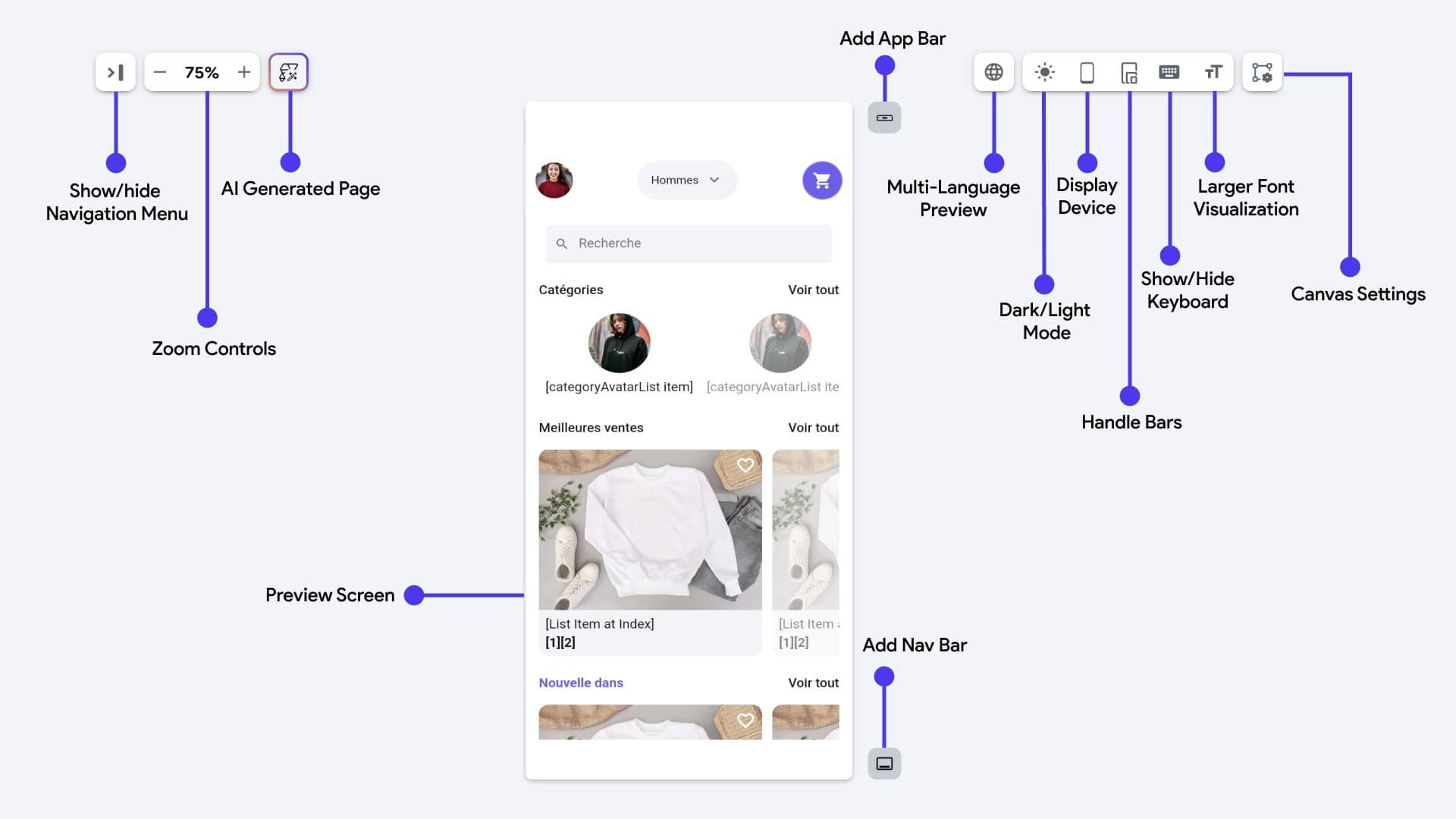
🖼️ Canvas (Middle Area)
The heart of FlutterFlow ❤️.
- This is your design space.
- Drag and drop widgets here to build your screens.
- What you see = how your app will look on a real phone.
💡 Quick Recap
- 🏠 Dashboard → Manage projects.
- 🛠️ App Builder → Full toolbox for building apps.
- 🎹 Toolbar → Controls for preview, save, deploy.
- 🖼️ Canvas → Design area for your screens.
👉 Start with Widget Palette → drag to Canvas → style in Properties Panel. That’s how your first app screen comes alive! 🚀